One task, from your words to a merged pull request
Crewyard is the orchestrator: a deterministic scheduler runs the crew plan you approved. An agent cannot start other runs, and every step that leaves your machine waits for you.
01The flow of a task
- 01
Open a project
Open a folder, clone from GitHub or start an empty repository. A five-step wizard detects the project type and its build and test commands, then asks which agents and accounts may work here, the daily and per-task caps, which commands run without asking, and how GitHub is used. Nothing is written until Create project; the result is .crewyard/project.json, which never holds keys.
- 02
Describe a task
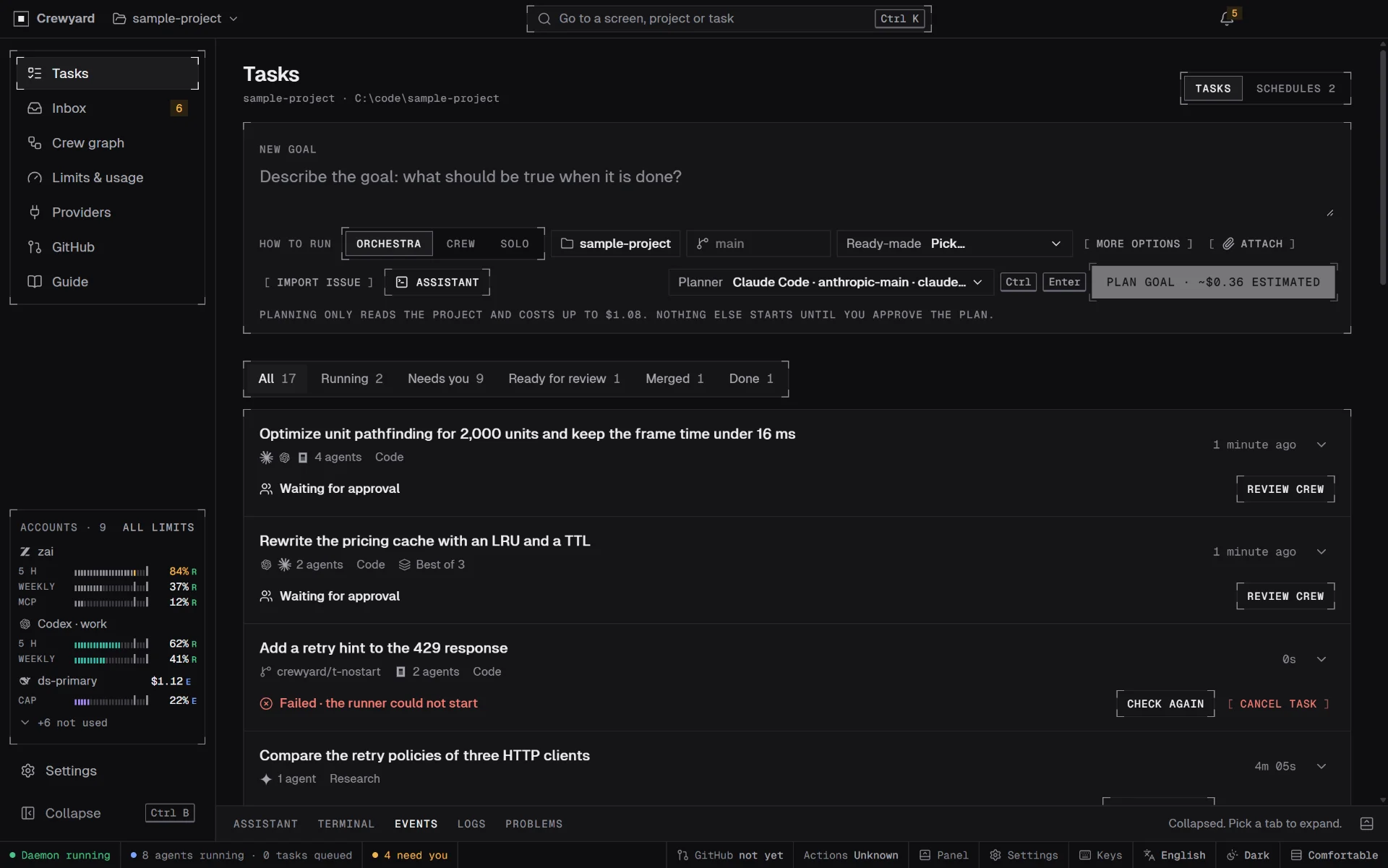
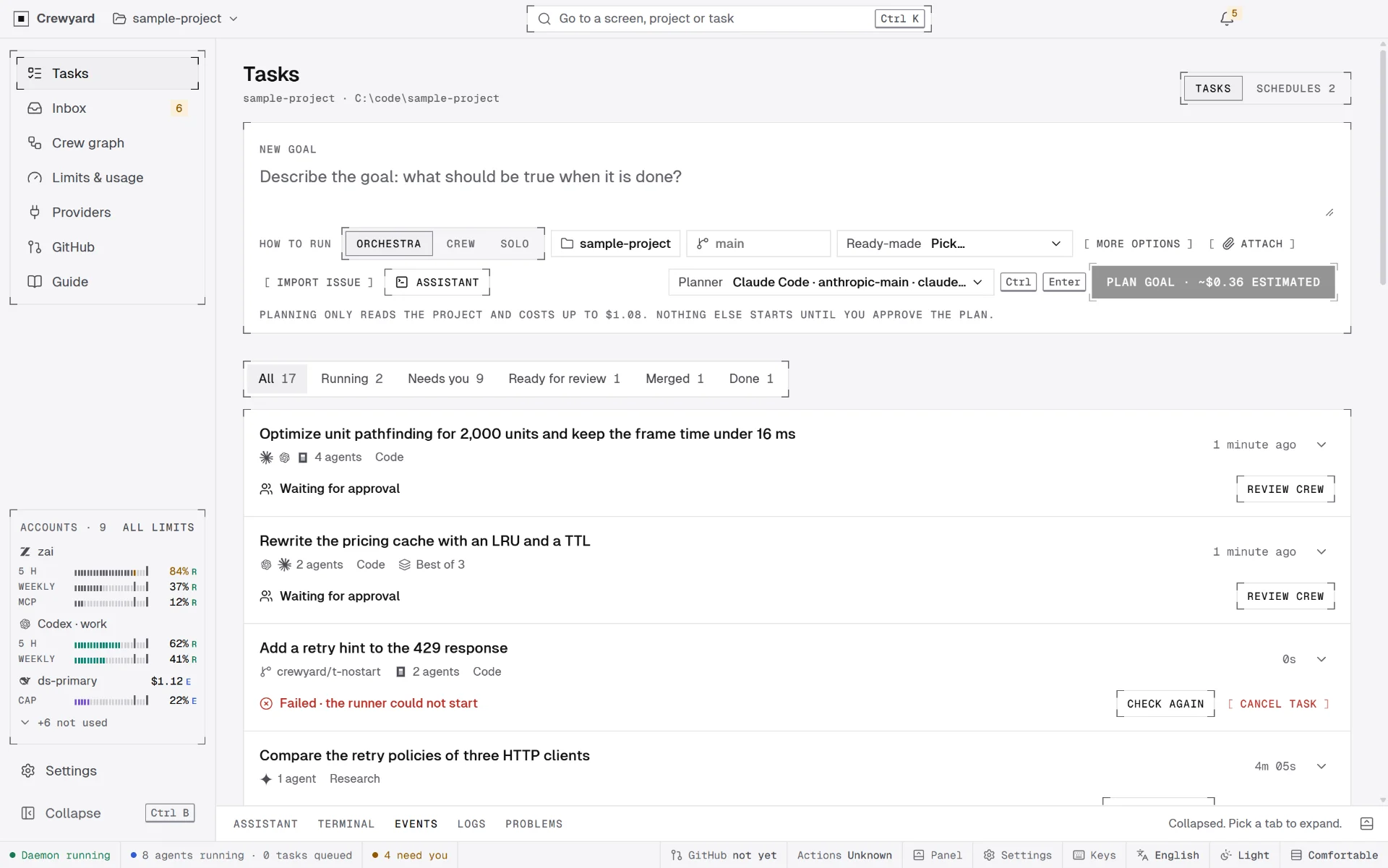
Type what you want in the composer, paste or drop images and files, or pick a ready-made analysis. The task assistant can turn a loose idea into task drafts first. Submitting opens a crew proposal; it never starts work.
- 03
Approve the crew
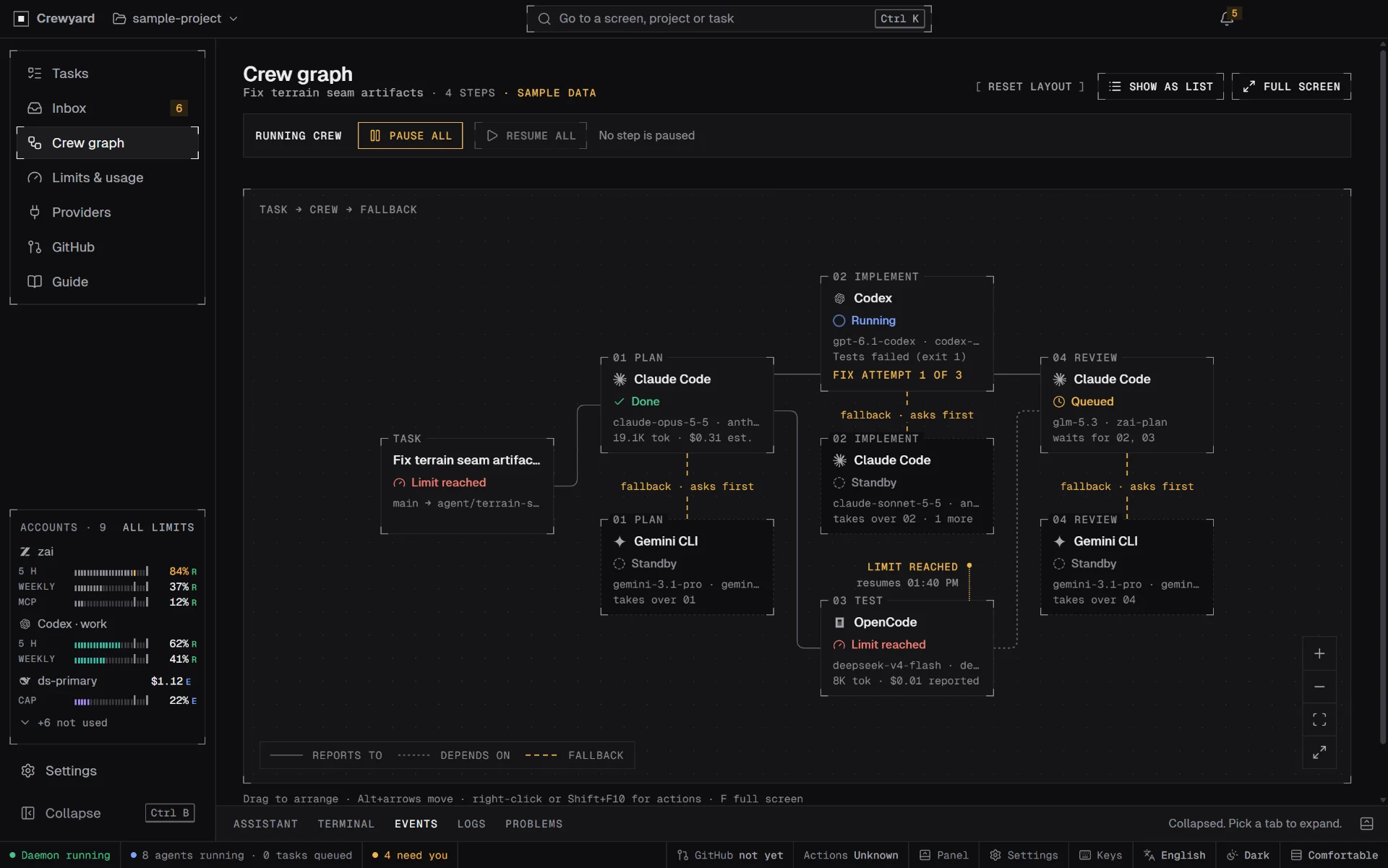
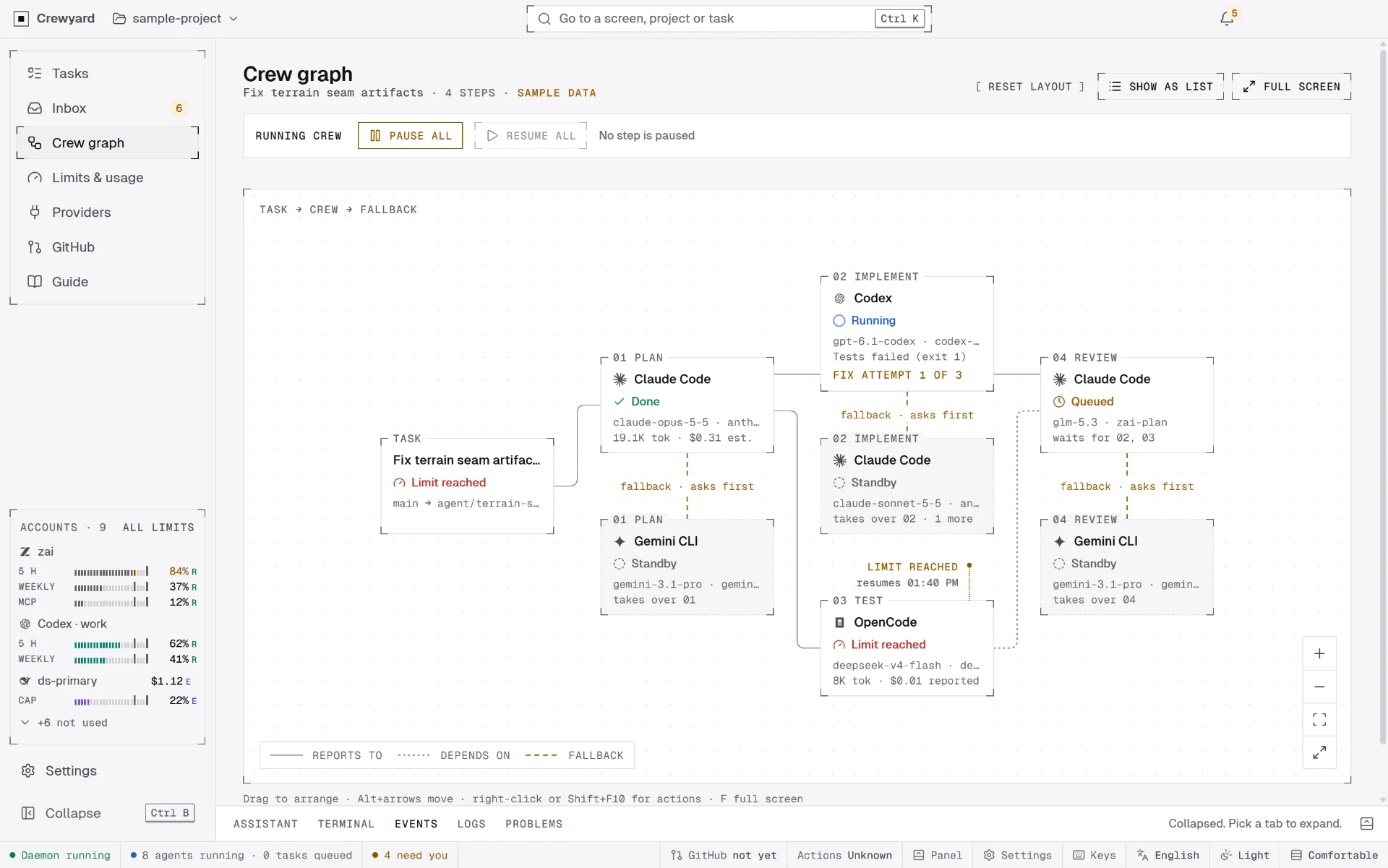
Crewyard classifies the task and proposes a step per role (for example plan, implement, test and review), picks a runner, model and account for each with a one-line reason, its headroom and an estimate, and two standbys per role. The reviewer always runs on a different model than the implementer. You can change any step in the Crew graph. Nothing starts until Approve and start.
- 04
Agents work in worktrees
Each code-writing run works in its own git worktree, under a scheduler with a global cap, a per-account cap and a memory check. Before an implementer finishes, the project's tests run and a failure goes back to the same session. Reviews read the exact commit, and the merge gate takes only a pass verdict for that commit.
- 05
Answer in the Inbox
When an agent asks something, wants to run a command that is not allowed yet, or reaches a limit, the run pauses at a turn boundary and an Inbox item waits. On Windows, low-risk approvals can come from a notification; anything else opens the Inbox. An unanswered request never times out into an approval.
- 06
Review, push and merge
Agents commit locally. Branches wait in GitHub, Waiting to push, with the workflows a push would trigger, so CI runs once per finished change. A pull request is opened only after the review gate passes and you click, and merging needs every gate: tests passed, branch up to date, no open questions, your approval.
02Crews and roles
When you submit a task, Crewyard classifies it (code, research, review or docs, and a size from S to L) with local rules first, picks the role template for that class, and scores every signed-in account for each role: how well the runner and model fit the role, headroom on plan windows (Reported before Estimated), cost for the task size against its budget, how often that runner's work was accepted in this repository, and your pins and exclusions.
Each pick comes with a one-line reason and a meter, and the next two candidates become the role's standby chain. The reviewer never runs on the same model as the implementer. The first version is rule-based and learns only from what you accepted or rejected; no model is called without a key you configured.
| Role | Permissions | Output |
|---|---|---|
| Planner | Read-only | A plan with steps, acceptance criteria and risks |
| Implementer | Writes inside its worktree, runs allowlisted commands | Commits in the worktree and a summary |
| Reviewer | Read-only; may run tests | A pass or changes verdict, comments with file and line |
| Tester | Runs commands inside the worktree | Results, benchmark numbers with their environment |
| Researcher | Read-only, web allowed | Checked findings with severity, file, line and a suggested task each |
| Docs | Writes only under doc paths | Changed docs |
| Security | Read-only | Findings with severity and evidence |
Permissions are enforced by Crewyard's approval layer and each runner's own engine, never by the prompt. A run cannot create other runs: if an agent asks for more work, the request becomes an Inbox item.
03Runners and providers
A runner is the agent program, a provider is where the model comes from, and a credential is a key or a plan sign-in; a profile combines one of each with a default model and its own config folder. Providers come from a synced catalog built from models.dev: Anthropic, OpenAI, Google, DeepSeek, Moonshot Kimi, Zhipu GLM, Alibaba Qwen, MiniMax, Xiaomi MiMo, OpenRouter and more. You can pin a catalog version so estimates stay on it, and compare its prices with LiteLLM's table.
Anthropic or Anthropic-compatible API keys only; never a claude.ai sign-in.
ChatGPT sign-in through its own login, or an API key, on OpenAI or OpenAI-compatible providers.
Driven over the Agent Client Protocol on a Gemini API key; its own Google sign-in serves Gemini Code Assist Standard or Enterprise accounts only.
Runs on every provider in the catalog.
Each account is its own config folder, so two accounts of one runner never share state. Every runner is driven through its native protocol (the Claude Agent SDK, the Codex app-server, the OpenCode server, the Agent Client Protocol for Gemini CLI), and a new CLI version is accepted only after Crewyard's conformance suite passes against it.
04Limits and provenance
Quota comes only from each agent's own reporting channel, and every value carries where it came from and how old it is.
| Label | Meaning | Examples |
|---|---|---|
| Reported | The agent or provider said it through an official channel. | Codex rate-limit events; balances from DeepSeek, OpenRouter, Novita, StepFun and SiliconFlow; coding-plan quota. |
| Estimated | Crewyard computed it. | Tokens times the versioned catalog price, including a provider's peak-hour factor and per-request search and fetch charges; context fill. |
| Unknown | There is no trustworthy source. It is never drawn as a percentage. | Gemini CLI quota, Codex in API-key mode. |
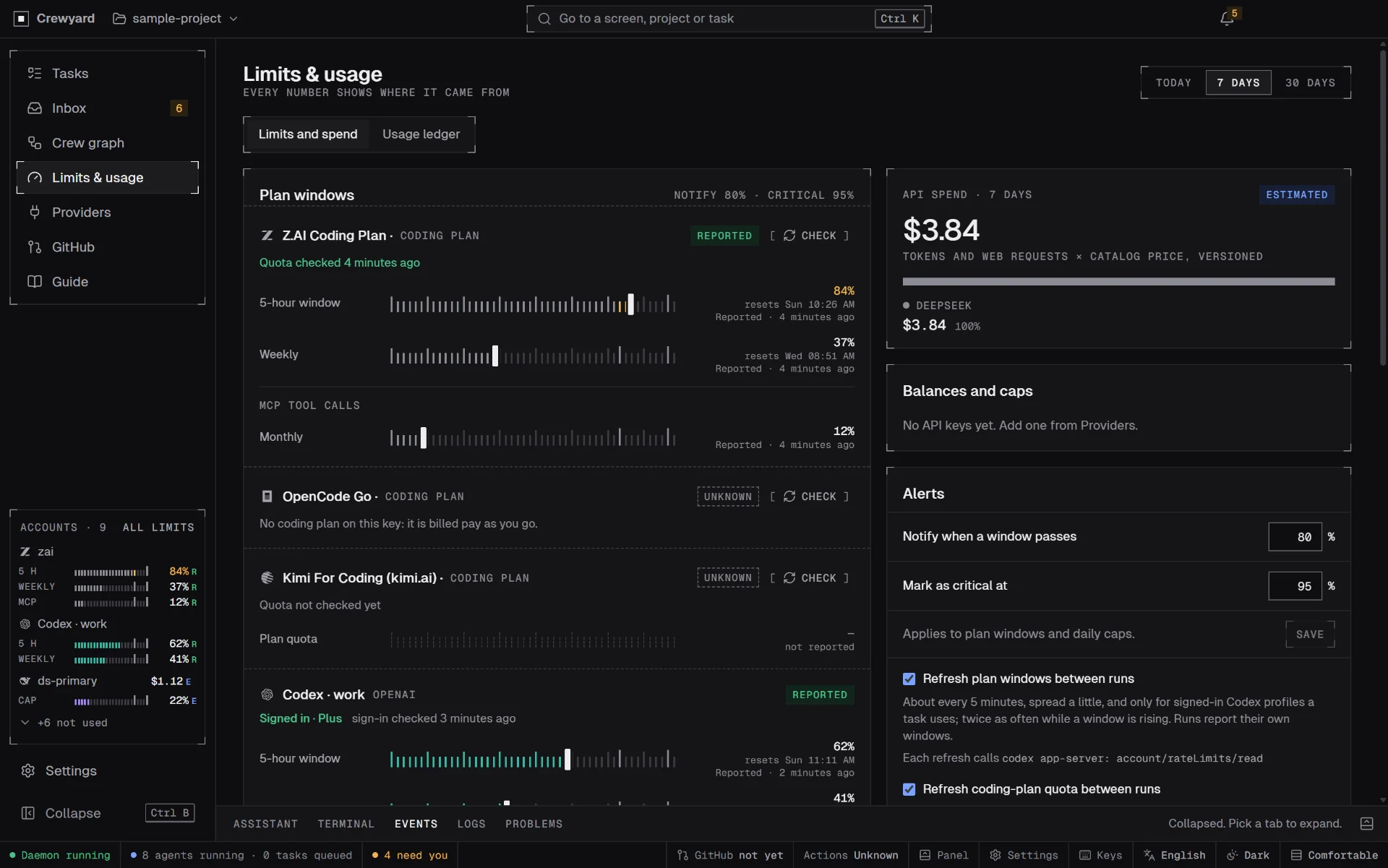
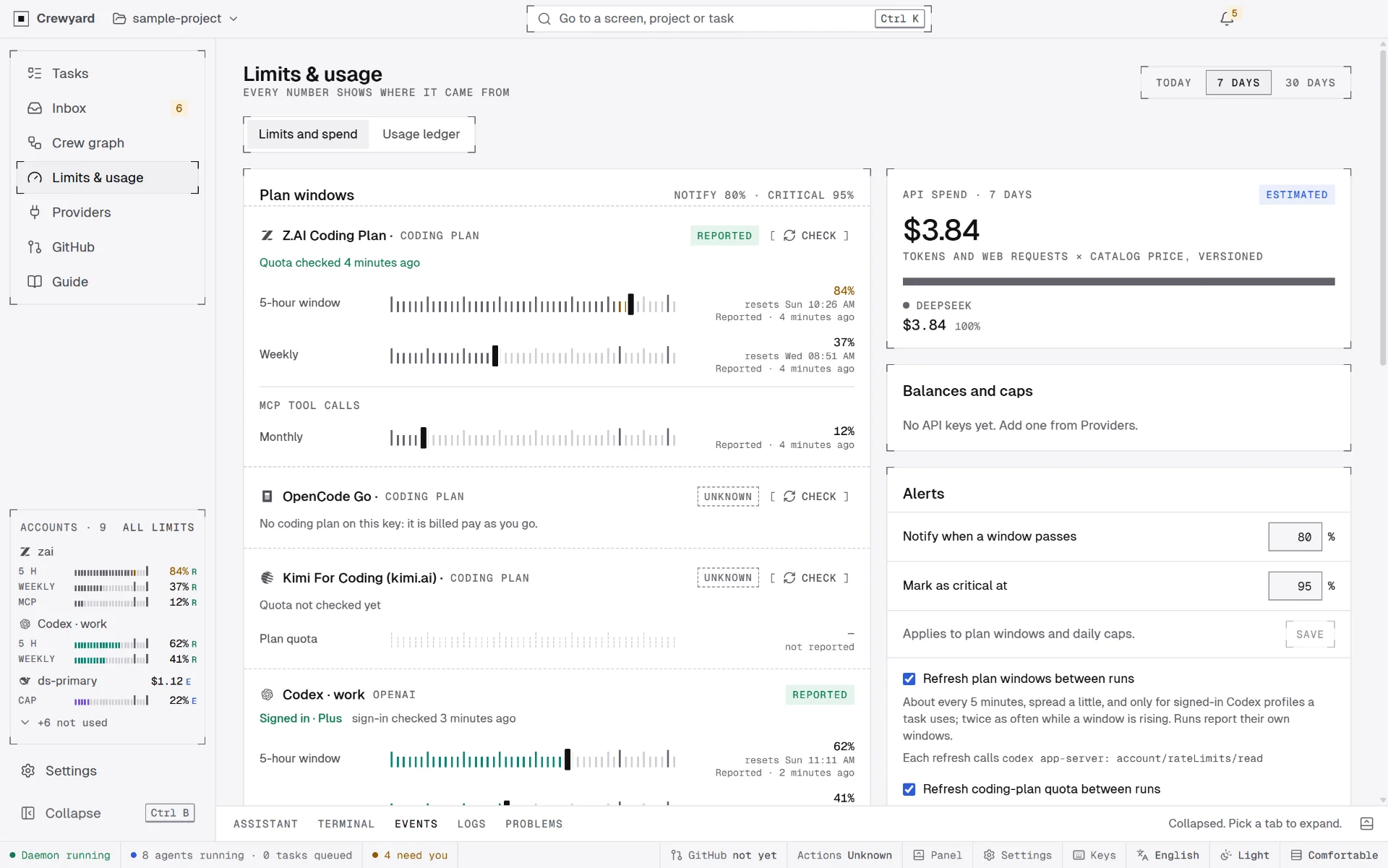
API keys get a daily cap and a per-task cap. Notifications are deduplicated and batched, at most one per account per window state, with quiet hours and per-project mute.
| When | What happens |
|---|---|
| A window passes 80% | The meter turns amber, a banner on the task, one notification; once per window. |
| Ahead of pace | At the current burn rate the window fills before it resets: a banner, once per run. |
| A window passes 95% | A critical notification and an Inbox item. |
| Limit reached | The run pauses at a turn boundary, with Hand off and Wait for reset. |
| A budget cap is reached | The run pauses and never continues on a paid key without your click. |
05Fallback and handoff
Each task has a rule for what happens when a limit is reached, a credit runs out, a sign-in expires or an agent crashes.
- Manual
- The default. Pause at a turn boundary and ask in the Inbox.
- Ask
- The same, with the proposed target, its headroom and the estimate already in the Inbox item; one click continues.
- Auto
- Continue on the next target in the chain whose checks pass, then tell you. Never another account of the same provider.
- Wait for reset
- If the same account resets within a set time (20 minutes by default), resume there instead of switching.
A handoff follows the same steps every time:
- Check the target while the source is still alive: installed, signed in, more than 20% headroom, budget left, role rules met.
- Stop the source at a turn boundary; a half-finished tool call is never replayed.
- Commit the work in progress in the worktree as a local commit. Nothing is pushed.
- Write the handoff package: goal and acceptance criteria, plan, completed steps, the diff, failing tests, open questions, the reason, the transcript.
- Start the target: a native resume on the same runner and account, a fork of the session where the runner can, otherwise a new session in the same worktree that reads the package first.
- Flip the record only after the target confirmed it read the package; on failure the source stays paused and you get an Inbox item.
Switching to another account of the same provider (for example from a work to a personal Codex account) is its own setting, off by default, behind a note about provider terms (ADR 0009). A cross-provider handoff never claims to carry hidden model state.
06Task assistant and Autopilot
The task assistant is a terminal-style chat in the bottom panel (Ctrl Shift A on any project screen) with a read-only agent on a profile you pick. It reads the project, asks when something is unclear and proposes task drafts as editable cards. Add as draft turns one into a task whose crew still waits for your approval. It never writes files or starts runs, its spend counts against the key's daily cap as Estimated, and it stops on Stop and close or after it sits idle.
Autopilot is an opt-in mode of the assistant, per project and off by default (ADR 0017). After a consent card that lists what it may do and what stays with you, it creates tasks from what you write, edits ones that have not started, approves their crews when the Estimated cost fits, queues messages to running steps, retries a failed step once, cancels its own tasks and marks a finished analysis done after reading its report.
- Default limits: $1.00 per task, $5.00 per day, 4 tasks started and created per hour, 2 at once. Only your click changes them.
- An estimate must be known, never Unknown, and under the limits together with today's committed spend; every chosen key must be under its own caps.
- Push, pull requests, merges, deleting a worktree or branch, spend past any cap, Inbox approvals, sign-in and Autopilot's own settings stay with you. It has no tool for them.
- Stop Autopilot in the status bar or Settings refuses every call at once without stopping running agents. Two failed steps with the same failure within 24 hours halt it in that project.
- Every call, allowed or refused, is logged with its reason.
07Your agent files and roles
Every profile runs in its own config folder, so your personal setup reaches a run only through Settings, Instructions and skills. Crewyard lists the instruction files, rules, skills, commands and subagents you wrote for Claude Code, Codex, Gemini CLI, OpenCode, Cursor, Windsurf, Copilot and Cline, without ever opening a credential, token, .env or settings file.
- Sharing copies the item you pick into the profiles you pick, in that runner's own place and format. It is never a link.
- A copy loses pre-approved tools, hooks and a model of its own; a skill with scripts needs an explicit tick. A file Crewyard did not write is never overwritten.
- Each copy shows whether it is up to date, and only Sync copies again.
- A project's AGENTS.md, CLAUDE.md, GEMINI.md, Copilot, Cursor or Windsurf rules can reach the runners that do not read them, per project and off by default. Nothing is written into the project.
Role files in .crewyard/roles (or global ones in Crewyard's data folder) change a built-in role's contract or add a role of your own. A file that replaces a role may only narrow its permissions, a custom role never gets more than the project's rules allow, and a file that does not parse is not used. Instruction files and skills are untrusted text: they never change a role's permissions, the allowlist or the spend caps.
08GitHub
- Crewyard reuses your GitHub CLI sign-in and stores no new token.
- Agents commit locally. GitHub, Waiting to push, lists branches with their commit counts and the workflows a push would trigger; one click pushes once.
- A pull request is created only after the review gate passes and you click. Merging needs every gate: tests passed, branch up to date, no open questions, your approval.
- Send failing checks to the agent reads the failed steps' logs and queues them as untrusted CI output for the step that owns the branch. It is queued, never sent, until the step reaches a turn boundary or you continue it.
- Worktrees are cleaned up only after merge, only when clean with nothing unpushed and no live process, and only after you confirm.
- Crewyard warns when a repository's workflows break your CI rules, and shows the month's Actions minutes when your token can read billing.
09What never happens without you
- Starting a crew waits for your click.
- Pushing a branch waits for your click.
- Opening a pull request waits for your click.
- Merging waits for your click.
- Deleting a worktree or a branch waits for your click.
- Spending past a budget or a key's cap waits for your click.
- Continuing on another agent in Ask mode waits for your click.
- Answering an approval in the Inbox waits for your click.
Two opt-ins may start a crew without a click, and both are audited:
- Schedules you set up. A scheduled task goes through crew approval unless its template says to auto-approve that crew, and that choice is audited. Nothing runs while the app is closed.
- Autopilot. Off by default, per project, after a consent card. It approves crews only for tasks it created, under the per-task, per-day, hourly and concurrency limits you set. It has no tool for push, pull requests, merges, deletes, spend past a cap or Inbox approvals.
The full rules are in PLAN.md and the decision records. Security details are on the security page.